Anika Bajaj
· Updated 16 Jul 2025 · 4 min read
On this page
A customer wallet in your online store allows users to store money digitally in their wallets for future purchases. This makes transactions quicker, more secure, and encourages repeat business. It’s a user-friendly feature that benefits both customers and the online business by reducing checkout hassles.
Why do I need Customer Wallet?
- Customer Wallet gives each of your customers a digital wallet for shopping on your store.
- The customer will be able to add money to their wallet which can be used for future purchases.
- You can also offer cashback to your customers on repeated purchases which will incentivize for repeat purchases.
- It helps you run a referral program wherein you can reward your loyal customers who refer your store to their friends and family. Learn how Referral.
Prerequisites?
You need to have Online payments turned on for your online store and at least one payment gateway connected (Integrations > All Integrations). Refer this article to know more about how to install the online payment extension and how to procure payment gateway API credentials.
How can I enable Customer Wallet for my online store?
Go to Customers > Wallet. There is nothing to install: the wallet is built into your admin. Turn on the Customer Wallet field to switch the wallet on for your customers.
How can I enable Customer Wallet for my online store?
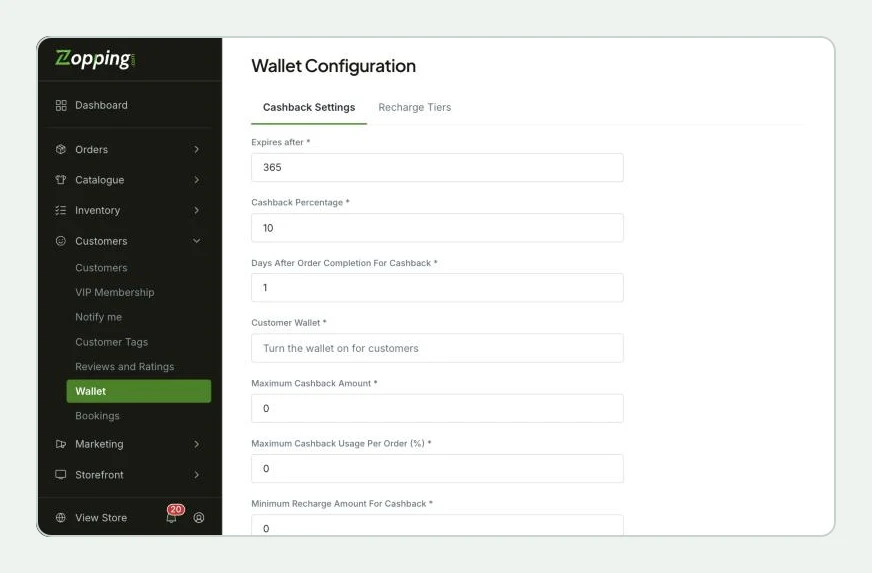
- Go to Customers > Wallet. You will land on the Wallet Configuration page, on the Cashback Settings tab.
- Here you will see the fields below. We will walk you through what each field means and how you can configure the values for the same. The Recharge Tiers tab next to it lets you set up recharge offers.
How will this change affect my online store?
Note- You can continue configuring details in this page only if you are interested in building a loyalty program for your customers. If not, the customers can continue using their wallet for their individual purchases.
- The Expires After field defines the number of days the credit amount is available in your wallet. Beyond those many days, it expires. Example: Let’s say you have defined 365 days in this field. If a cashback has been offered to your customer at the time of purchase, the cashback will be redeemable for 365 days.
- In the Cashback Percentage field, you can define the percentage of the purchase amount that should be deposited in the customer’s wallet after the transaction for the same is completed.Note- The cashback percentage defined here is valid for all purchases made with the customer’s account.
- In the Days After Order Completion for Cashback field, you can define the days after which the cashback amount should be credited to the customer’s wallet.
- The Customer Wallet field turns the wallet on for your customers. The Maximum Cashback Amount, Maximum Cashback Usage Per Order (%) and Minimum Recharge Amount For Cashback fields let you cap how much cashback a customer can earn and use, and set the smallest recharge that earns it.
- Click on Save to save the changes.
How will this change affect my online store?
- When an existing user logs in to your online store, in the profile section, the user will see a Wallet option.
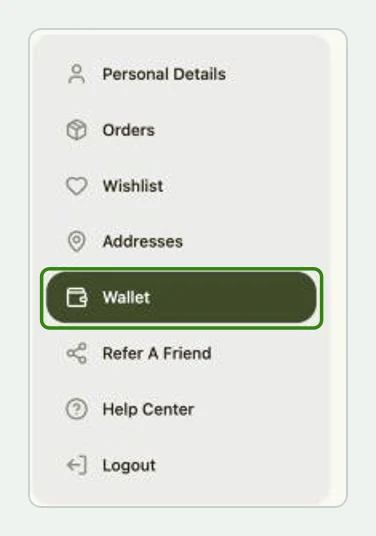
- When the user selects the Wallet option, they will be redirected to their wallet page. If this is their first time visiting, the screen will show the following page.
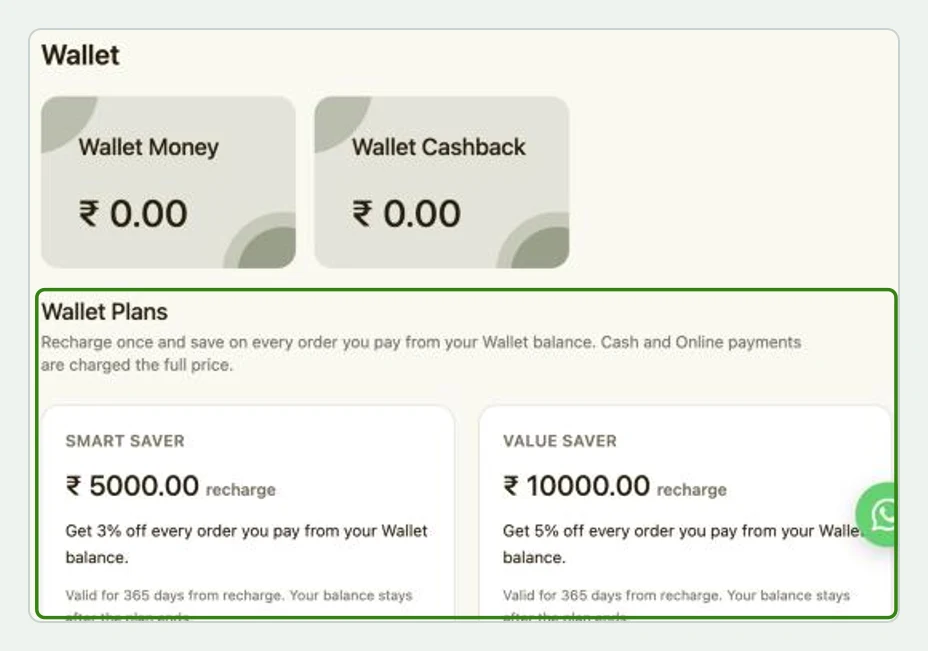
- Click on the Add Amount option. This will lead the user to the Recharge window. The user can now add an amount that they need to add to the wallet and click on the Recharge button. After completion of the transaction via a payment gateway, the amount will be reflected in the wallet.
- The customer will now be able to see their wallet money, cashback, and referral bonus amounts on their Wallet page in their profile.
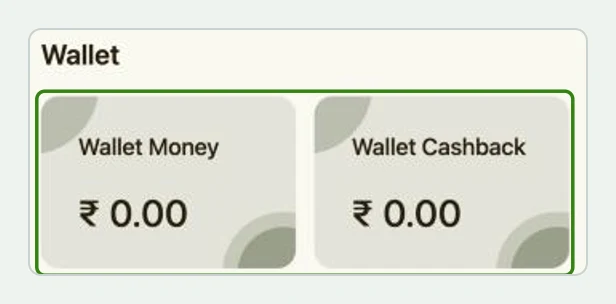
- The store owner will also be able to view the wallet information of any customer registered with their online store. Navigate to Customers > Customers, open a customer and select the Wallet tab. Here you will be able to see all the wallet money, cashback, and referral bonus amounts that are redeemable by the customer.
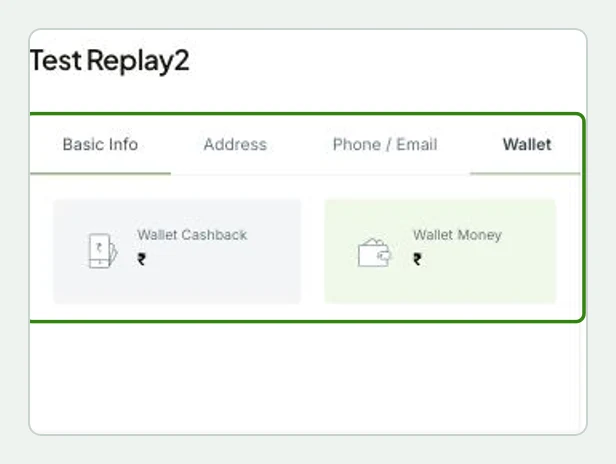
Note- There are 2 types of funds that can be deposited in the customer wallet-
Wallet Money- this is the amount that the customer has deposited in their wallet using a payment gateway. They can use this amount for their purchases. This amount does not expire and stays in the wallet.
Cashback- this is the amount rewarded to the customer by the store owner. This can be in the form of cashbacks offered on purchases, referral bonus or signup bonuses.
What happens when I uninstall this extension?
- Customers will not be able to view and recharge Wallet and use the Wallet Money to pay for orders. All existing data will be lost.
- Customers will not be able to view and receive Cashback in their Wallet and use it to pay for orders and receive Cashback and use it to pay for orders.
Share this article